Android devices include a built in hotspot feature that allows you to share your mobile data connection with other devices. This function is useful when Wi Fi is unavailable and internet access is needed on a laptop, tablet, or another phone. By using the hotspot settings on Android, mobile data can be shared securely and controlled directly from the device.
How to Use a Mobile Hotspot on Android?
Once the mobile hotspot is turned on, you can manage connections, passwords, connected devices, and data usage directly from Android settings. These options help you control who connects to your hotspot and how much data is used. [1]
Connect to an Android Hotspot
To connect to an Android hotspot, the hotspot owner must first enable it and share the network name and password.
To connect from another device:
Open Wi Fi settings on your device.
Find the hotspot name in the list of available networks.
Tap the network name.
Enter the hotspot password. [2]
Open Settings.
Tap Network and Internet or Connections.
Select Mobile Hotspot and Tethering.
Tap Mobile Hotspot to open its settings.
Select Configure.
Enter a new network name or password and save the changes.
Open Settings.
Tap Network and Internet or Connections.
Select Mobile Hotspot.
View the list of connected devices.
Open Settings.
Tap Network and Internet or Connections.
Select Data usage.
Tap Mobile data usage.
Scroll to find Mobile Hotspot and Tethering.
Open Settings.
Tap Network and Internet or Connections.
Select Data usage.
Tap Mobile hotspot and tethering.
Select Mobile hotspot.
Tap Configure.
Open Advanced settings.
Find Set mobile data limit and select it.
Enter the data limit in MB and confirm.
Open Settings.
Tap Network and Internet or Connections.
Select Mobile Hotspot and Tethering.
Tap Mobile Hotspot.
Select Configure.
Enter a new network name.
Save the changes.
Check whether your mobile plan includes hotspot data.
Make sure your phone has a strong mobile network signal.
Confirm that Mobile Hotspot is turned on and properly configured.
Disconnect one of the connected devices if the maximum limit is reached.
Restart the phone and check for available software updates.
Once the password is entered, the device connects to the internet immediately.
Some Android phones also allow hotspot sharing using a QR code. The QR code is available in the Mobile Hotspot settings and can be scanned to connect automatically without entering a password.
When connecting to hotspots hosted by people you do not know well, it is recommended to disconnect after use and remove the network from saved connections for security purposes.
Find and Change the Android Hotspot Password
Changing the hotspot password helps prevent unauthorized access and reduces unnecessary data usage.
To change the hotspot password:
The updated password applies immediately to all new connections.
Check Connected Devices
Android allows you to view all devices currently connected to your hotspot.
To check connected devices:
Tapping on a device shows additional connection details.
Check Hotspot Data Usage on Android
Monitoring data usage helps avoid exceeding mobile data limits while using hotspot.
To check hotspot data usage:
For more information, you can read our page on How to Check Hotspot Usage?.
Limit Hotspot Data Usage on Android
Android allows you to set limits on hotspot data usage to help control mobile data consumption. When a limit is reached, the hotspot can be turned off automatically.
To set a hotspot data limit:
Once the limit is reached, the hotspot is disabled and connected devices are disconnected. On some Android devices, only general mobile data limits are available, which apply to overall data usage rather than hotspot usage alone.
The data limit can be adjusted or removed at any time from the same settings menu.
Change the Android Hotspot Name
Changing the hotspot name makes it easier to identify your network and can improve privacy by hiding the default device name.
To change the hotspot name:
The updated hotspot name becomes visible immediately to nearby devices.
What to Do If Your Android Hotspot Is Not Working
If an Android hotspot is not working, the issue is usually related to network conditions, device settings, or plan limitations. Most problems can be resolved with a few basic checks.
Common reasons a hotspot may not work include:
The mobile plan does not support hotspot usage.
Weak or unstable cellular signal.
Incorrect hotspot configuration.
Too many connected devices.
Temporary system or software issues.
To troubleshoot hotspot problems, try the following steps:
If the hotspot still does not work, contact your mobile carrier to confirm that hotspot access is enabled on your line.
Pro Tips for Android Hotspot Use
Using a hotspot efficiently helps reduce data usage, improve performance, and save battery life.
Strong security settings: Enable WPA2 or WPA3 security and use a strong password to prevent unauthorized access.
Limit connected devices: Fewer connected devices result in better speeds and a more stable connection.
Monitor data usage: Regularly check Mobile hotspot and tethering usage to avoid exceeding data limits.
Turn off the hotspot when not in use: Disabling the hotspot when it is not needed helps conserve both data and battery power.
Choose the appropriate Wi Fi band: Use 2.4 GHz for wider coverage and better compatibility, or 5 GHz for faster speeds at shorter distances.
Check access point name settings if needed: Correct APN settings help ensure reliable hotspot performance, especially after changing SIM cards or carriers.
Keep the device charged during hotspot use: Hotspot functionality increases battery consumption, so charging during use is recommended.
Enable automatic hotspot shutdown: Turning on automatic shutoff when no devices are connected helps manage power and data usage.
Using Hotspot with Roamless
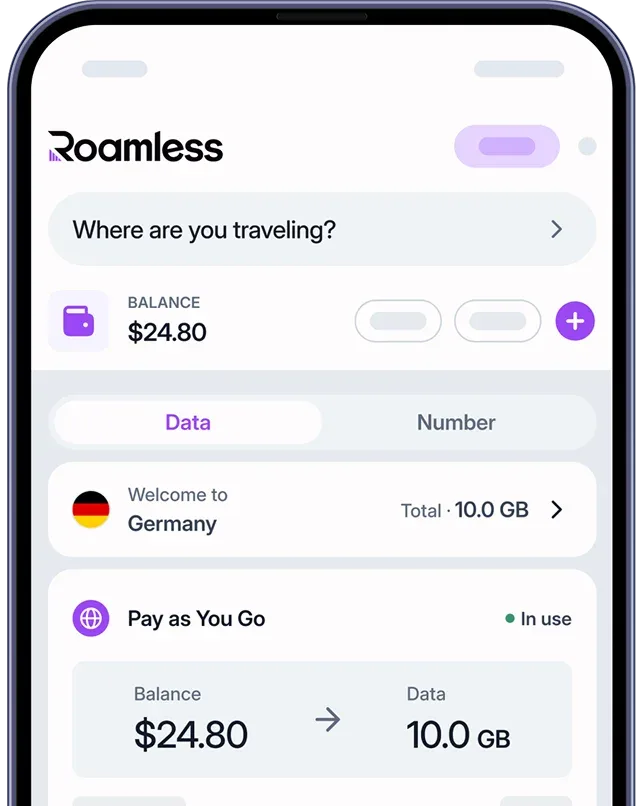
Managing hotspot data efficiently is important for travelers who need reliable internet access across multiple devices. A Global eSIM like Roamless makes it easy to stay connected without switching physical SIM cards or paying high roaming charges.
Flexible Data Plans: Roamless offers pay-as-you-go and fixed data options suited for both short trips and longer stays, allowing you to manage your spending while using your hotspot abroad.
Instant Activation and Management: You can purchase and activate your eSIM immediately through the Roamless app, giving you full control over your data anytime and anywhere.
Hotspot and Tethering Support: Roamless fully supports hotspot and tethering usage subject to network conditions and plan balance, letting you connect multiple devices when needed.
Wide Coverage: With support in over 200 destinations, Roamless ensures you can stay connected and use your hotspot almost anywhere you travel.
In addition, you can open the Roamless app and enter a valid promo code at checkout. To get the latest offers and extra data on your first purchase, visit oureSIM promo code page.
Android hotspot allows mobile data to be shared with other devices when Wi Fi is unavailable. Knowing how to enable, manage, secure, and monitor hotspot usage helps maintain a stable connection while controlling data and battery consumption. With proper configuration, Android hotspot provides a practical way to stay connected both at home and while traveling.
For more information, you can also check out our posts on Tethering vs Hotspot andDoes Hotspot Use More Data?.
Frequently Asked Questions
How Many Devices Can Be Connected to the Same Android Hotspot?
The number of devices that can connect to an Android hotspot depends on the device model, Android version, and manufacturer settings. Most Android phones support between 5 and 10 simultaneous connections. Performance may decrease as more devices connect because all devices share the same mobile data connection.
Can I Limit the Number of Devices Connected to an Android Hotspot?
Yes, many Android devices allow you to limit the number of connected devices. This setting is usually available in the Mobile Hotspot options under Advanced or Configure. Limiting the number of devices can improve connection stability, reduce data usage, and help prevent unauthorized access.
Is a Hotspot Free to Use on Android?
The hotspot feature is built into Android and does not require an activation fee. However, using a hotspot consumes data from your mobile data plan. Whether it is free depends on your carrier and plan terms. Some plans include hotspot data, while others may restrict usage or charge additional fees.
How to Increase Hotspot Speed on Android?
Hotspot speed depends on mobile signal strength, device configuration, and the number of connected devices. Performance can be improved with a few adjustments.
Use the 5 GHz Wi Fi band for higher speeds, switching to 2.4 GHz if compatibility issues occur.
Reduce the number of connected devices and limit background downloads or data heavy applications.
Move to an area with stronger mobile signal or use USB tethering for a more stable connection.
Does Using a Hotspot Drain Battery on Android?
Yes, using a hotspot increases battery consumption. Continuous data sharing and Wi Fi broadcasting place additional load on the device. Battery drain is higher during long sessions or when multiple devices are connected. Keeping the phone connected to a power source helps maintain stable performance.
Sources:
[1] Google. (n.d.). Share your mobile connection by hotspot or tethering on Android. Android Help Center.https://support.google.com/android/answer/9059108
[2] Google. (n.d.). Connect to a Wi-Fi network on Android. Android Help Center.https://support.google.com/android/answer/9075847