Turning on hotspot on Android allows a phone’s mobile data connection to be shared with other devices such as tablets or computers. This feature, also known as tethering, is useful when another device does not have direct access to the internet. Android phones support sharing mobile data through Wi-Fi, Bluetooth, or a USB cable, depending on the device and system version. The hotspot feature can be managed directly from the phone’s settings and works on most devices running Android 9.0 or later.
How to Turn On Mobile Hotspot on Android
To share a mobile data connection, the hotspot feature can be enabled from the settings on an Android phone. This feature is also called tethering and allows other devices to access the internet through the phone’s mobile network.
Open Settings on your Android phone.
Tap Network & Internet or Connections (menu names may vary by device).
Select Hotspot & tethering.
Tap Wi-Fi hotspot and turn it on.
Check the hotspot name and password shown on the screen, as this information is needed to connect other devices.
Note: Mobile data must be turned on for the hotspot to work. Some carriers require a data plan that supports tethering.
How to Connect Devices to Android Hotspot
Once the hotspot is enabled, other devices can connect and use the phone’s mobile data connection. The number of devices that can connect at the same time depends on the Android device and the mobile carrier. Wi-Fi hotspot connections typically support up to 10 devices.
Connect with Wi-Fi
On the Android phone, go to Settings > Network & Internet > Hotspot & tethering > Wi-Fi hotspot.
Make sure the hotspot is turned on and note the network name and password.
On the device you want to connect, open Wi-Fi settings.
Select the Android phone’s hotspot name from the list of available networks.
Enter the hotspot password if prompted.
Connect with Bluetooth
On the Android phone, go to Settings > Network & Internet > Hotspot & tethering.
Turn on Bluetooth tethering.
On the other device, enable Bluetooth and pair it with the Android phone.
Once paired, the device can access the internet through the phone’s mobile data connection.
Connect with USB
Use a USB cable to connect the Android phone to a computer.
On the Android phone, open Settings > Network & Internet > Hotspot & tethering.
Turn on USB tethering.
The computer will automatically use the phone’s mobile data connection.
What to Do If Mobile Hotspot Is Not Working on Android Devices
If the mobile hotspot is not working on an Android phone or other devices cannot connect, check the following points:
Check mobile data: Go to Settings > Network & Internet and make sure Mobile data is turned on. Hotspot does not work with out an active mobile data connection.
Verify carrier support: Some mobile carriers require hotspot or tethering to be included in the data plan. If the hotspot option is missing or does not turn on, contact the carrier to confirm support.
Turn hotspot off and on: Go to Settings > Network & Internet > Hotspot & tethering, turn Wi-Fi hotspot off, then turn it back on to refresh the connection.
Restart devices: Restart the Android phone and the device trying to connect, then enable the hotspot again.
Check Android version and updates: Go to Settings > About phone > Android version and make sure the device is running a supported version. Install system updates if available, as updates can resolve connection issues.
Check hotspot settings: Confirm that the hotspot password is correct and that security is not blocking the connection. Try reconnecting from the other device.
Reset network settings: If the issue continues, go to Settings > System > Reset options > Reset Wi-Fi, mobile & Bluetooth. This removes saved networks and can fix configuration problems.
Contact carrier or device support: If none of the steps work, contact the mobile carrier or the device manufacturer’s support service for further assistance. [1]
The information above outlines standard reasons why mobile hotspot may not function on Android devices and presents commonly used steps based on Android system behavior and network requirements.
Data and Battery Tips When Using Mobile Hotspot on Android
Using an Android phone as a mobile hotspot can increase mobile data usage and battery consumption. The following points help manage both more effectively:
Monitor data usage: Go to Settings > Network & Internet > Data usage to review how much mobile data is being used while hotspot is active. This helps avoid exceeding data limits.
Limit background activity: On connected devices, close apps that automatically download updates, stream media, or sync large files, as these actions can quickly increase data consumption.
Disconnect unused devices: Each connected device uses mobile data and battery power. Disconnect devices that are no longer needed to reduce overall usage.
Keep the phone plugged in: When using mobile hotspot for extended periods, connect the Android phone to a charger to prevent excessive battery drain.
Use USB tethering for long sessions: A USB connection provides internet sharing while charging the phone at the same time, helping manage battery usage more efficiently.
Turn off hotspot when finished: Go to Settings > Network & Internet > Hotspot & tethering and turn off the hotspot when it is no longer needed to conserve data and battery.
Note: Mobile hotspot performance and power consumption may vary depending on network signal strength, device model, and carrier conditions.
Using Hotspot with Roamless eSIM on Android
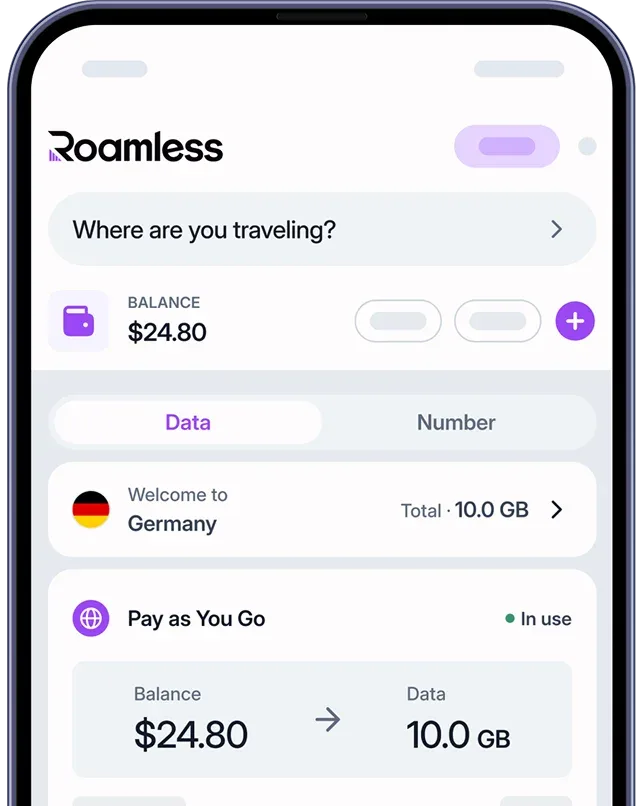
A global eSIM such as Roamless allows an Android device to use its mobile hotspot feature to share a data connection with other devices, including laptops, tablets, or additional phones. Hotspot usage is supported on Android devices that offer both eSIM and tethering functionality.
Wi-Fi hotspot: On Android, the mobile hotspot feature can be enabled to share the Roamless data connection with nearby devices. This is useful when other devices need internet access and no Wi-Fi network is available.
Setup behavior: In most cases, Roamless eSIM works directly with the Android hotspot feature once the eSIM is active. If the device supports eSIM and hotspot, manual APN configuration is usually not required, though this can vary by device model or network.
Device compatibility: As long as the Android device supports eSIM and mobile hotspot, the Roamless data connection can be shared via Wi-Fi without additional configuration.
Availability: Hotspot usage is supported with an active Roamless eSIM balance or plan, allowing data sharing while the eSIM is active and network conditions permit.
Android mobile hotspot can be used to share a Roamless data connection with other devices when needed. Data usage and battery consumption depend on connected devices, network signal strength, and device capabilities, so monitoring usage and managing power settings is recommended during hotspot use.
You can also read our posts onHow to Check Hotspot Usage?, How Much Data Does Hotspot Use? and Tethering vs Hotspot.
Frequently Asked Questions
How to Change Your Android Hotspot Name or Password
To change the hotspot name or password on Android, go to Settings > Network & Internet > Hotspot & tethering > Wi-Fi hotspot. From there, you can edit the network name (SSID) and set a new password. Using a strong password with letters and numbers helps protect the connection.
How to Secure Your Mobile Hotspot Connection on Android
To keep the hotspot connection secure, use a strong password and avoid sharing it with unknown devices. Turn off the hotspot when it is not in use and review hotspot settings to ensure security options are enabled. This helps prevent unauthorized access.
Does Roamless eSIM Support Hotspot on Android Devices
Yes. Hotspot use is supported with an active Roamless eSIM balance or plan. As long as the Android device supports eSIM and mobile hotspot, the Roamless data connection can be shared without additional setup or charges, subject to network conditions.
Does Using Mobile Hotspot Affect Data Usage or Battery Life on Android
Yes. All data used by connected devices counts toward the mobile data plan. Activities such as streaming or file downloads can increase data usage quickly. Mobile hotspot also increases battery consumption, so keeping the phone connected to a charger is recommended during extended use.
How Many Devices Can Connect to an Android Hotspot at the Same Time
The number of devices that can connect depends on the Android device and carrier settings. Most Android phones support up to 10 devices through a Wi-Fi hotspot, though connecting multiple devices may affect performance and battery usage. [2]
Can I Limit Data Usage When Using Mobile Hotspot
Yes. Android allows setting data warnings or limits under Settings > Network & Internet > Data usage, which helps manage mobile data consumption while hotspot is active.
Source:
[1] Google. Connect personal devices automatically to Wi-Fi & instant hotspots. Google Support. Retrieved December 14, 2025, from https://support.google.com/android/answer/14993633?hl=en
[2] Google. Share a mobile connection by hotspot or tethering on Android. Google Support. Retrieved December 14, 2025, from https://support.google.com/android/answer/9059108?hl=en