Microsoft Teams is widely used for video meetings, online collaboration, and remote work. The amount of data Microsoft Teams uses depends on factors such as whether your camera is on, the video quality of the call, and how many people are in the meeting. For typical video calls, data usage generally ranges between about 500 MB and 1.2 GB per hour. If you plan to use Microsoft Teams while traveling abroad, using a global eSIM like Roamless can help manage your mobile internet usage.
How Much Data Does Microsoft Teams Use?
Microsoft Teams' data usage ranges from about 0.5 MB per minute, 30 MB per hour, and up to 200 MB per week for audio-only calls to as high as 40 MB per minute, 2 GB per hour, and up to 12 GB per week for high-definition group video meetings. The table below shows estimated Microsoft Teams data usage per minute, per hour, and per week.
Activity | Data Usage per Minute | Data Usage per Hour | Data Usage per Week (1 hour per day) |
|---|---|---|---|
Audio-only VoIP call | About 0.5 MB | About 30 MB | About 200 MB |
Screen sharing (no video) | About 1–3 MB | About 60–180 MB | About 400 MB to 1.2 GB |
One-on-one call at 360p | About 5–6 MB | About 300–360 MB | About 2–2.5 GB |
One-on-one call at 720p HD | About 10–20 MB | About 600 MB to 1 GB | About 4–7 GB |
One-on-one call at 1080p Full HD | About 20–30 MB | About 1–1.5 GB | About 7–10 GB |
Group call at 360p | About 6–10 MB | About 350–600 MB | About 2.5–4 GB |
Group call at 720p HD | About 15–25 MB | About 900 MB to 1.5 GB | About 6–10 GB |
Group call at 1080p Full HD | About 25–40 MB | About 1.5–2 GB | About 10–12 GB |
Table 1: Estimated Microsoft Teams Data Usage by Activity
Disclaimer: These values are approximate and actual usage may vary depending on network conditions and device settings. Please verify the most current Microsoft Teams usage information within your app or device settings.
Note: Microsoft explains that Teams adjusts bandwidth usage based on network conditions and meeting activity, with higher video quality and additional features such as screen sharing requiring more data. [1]
How to Check Microsoft Teams Data Usage on Your Device
Knowing how much data Microsoft Teams uses on your device can help you manage your data plan more effectively, especially when using the app while traveling. Both iPhone and Android devices allow you to monitor how much mobile data each app consumes through system settings.
For iPhone Devices:
Open the Settings app on your iPhone.
Tap Mobile Data or Cellular.
Scroll down until you see Microsoft Teams in the list of apps.
The number shown next to Microsoft Teams indicates how much mobile data the app has used.
You can reset these statistics at the start of a trip or billing cycle to track usage more accurately.
Open the Settings app on your Android device.
Tap Networkand Internet.
Select Data Usage.
Tap App Data Usage or Mobiledata usage.
Choose Microsoft Teams from the list to see how much mobile data it has used over the selected period.
You can adjust the date range to monitor usage during travel or your monthly plan.
For Android Devices:
Disclaimer: Menu names and paths may vary slightly depending on your device model, operating system version, or manufacturer interface. Please verify the steps using your device’s current settings.
How to Reduce Microsoft Teams’ Data Usage
If you want to reduce how much data Microsoft Teams uses during calls, there are several settings and habits that can help. These steps are especially useful when you are on a limited data plan or using mobile data while traveling.
Turn off your camera when possible: Video calls use significantly more data than audio-only calls.
Lower video quality: Using standard definition instead of HD can noticeably reduce data usage.
Limit screen sharing: Screen sharing increases data consumption, especially when sharing dynamic content.
Close background apps: Other apps using the internet can increase overall data usage and affect call quality.
Use audio-only mode when appropriate: Audio-only calls consume far less data than video meetings.
Adjust in-app data settings: Microsoft Teams includes options to reduce data usage, especially when connected to mobile networks.
Keep the app updated: App updates may include performance and data efficiency improvements.
Disclaimer: Available Microsoft Teams settings may vary depending on your device, operating system, and app version. Network conditions and meeting configurations can also affect how much data is saved. Please verify the available options in your Microsoft Teams and device settings.
Note: Some Microsoft Teams users have discussed mobile data consumption during meetings, noting that usage can change depending on video quality, meeting duration, and enabled features such as screen sharing. [2]
Comparing Microsoft Teams Data Usage to Other Video Conferencing Platforms
Microsoft Teams’ data usage is broadly comparable to other popular video conferencing tools, with overall consumption mainly influenced by video quality, meeting size, and whether features such as screen sharing are enabled. The table below shows approximate hourly data usage for HD video calls across several commonly used video conferencing platforms.
Platform | Estimated Data per Hour (HD Video) |
|---|---|
Microsoft Teams | About 500 MB to 1.2 GB |
Zoom | About 300 MB to 2.5 GB |
Google Meet | About 400 MB to 1 GB |
FaceTime | About 300 MB to 900 MB |
Table 2: Estimated Data Usage for Popular Video Conferencing Platforms
Disclaimer: Data usage may vary depending on device settings, network conditions, and the video quality selected within each platform. Please verify the available options and video quality settings within each platform’s current version.
For more information, you can read our posts on How Much Data Does Zoom Use and How Much Data Does Google Meet Use.
Using Microsoft Teams Abroad Using Roamless eSIM
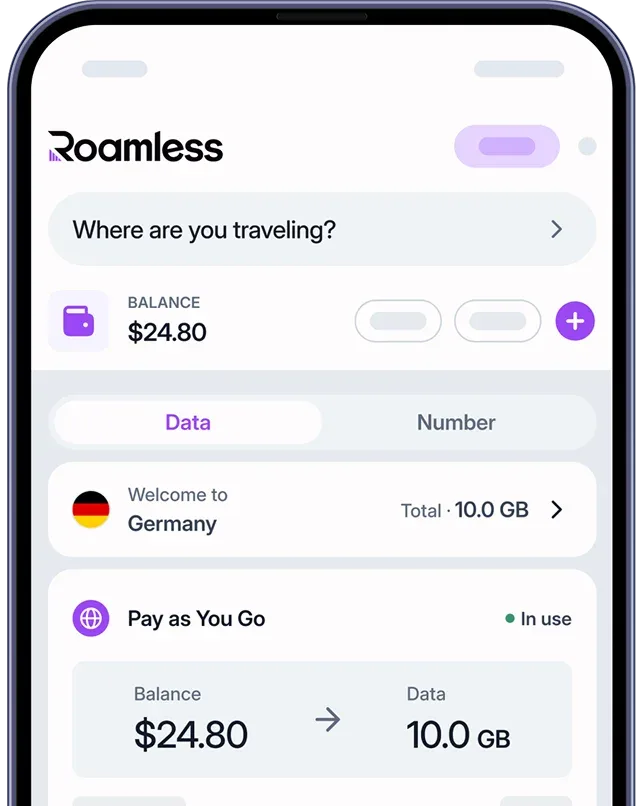
Using Microsoft Teams while traveling can increase mobile data usage, especially during long meetings or when video calls are enabled. A global eSIM like Roamless can help you stay connected and better manage your mobile data when working or attending meetings abroad.
Wide international coverage: Roamless offers mobile data access in over 200 destinations, making it easier to join Microsoft Teams meetings while traveling.
Consistent high-speed connectivity: Roamless supports fast mobile internet connections, including 5G where available, helping maintain stable audio and video quality during Teams calls.
Works across multiple devices: Roamless is compatible with both iOS and Android devices and removes the need to swap a physical SIM when traveling.
In-app data monitoring: The Roamless app allows you to track your mobile data usage, which can help you estimate how much data Microsoft Teams consumes during your trip.
For more information, you can read our guides on How to Avoid Roaming Charges and How Much Data Do I Need for Travel Abroad.
Frequently Asked Questions
Does Microsoft Teams use a lot of data?
Microsoft Teams can use a noticeable amount of data during video meetings, especially when HD video or screen sharing is enabled. Using lower video quality or joining meetings with audio only can help reduce data usage.
How much data does Microsoft Teams use per hour?
For most video calls, Microsoft Teams typically uses between about 500 MB and 1.2 GB per hour, depending on video quality, meeting size, and network conditions. Audio-only calls use significantly less data.
How much data does Microsoft Teams use without video?
When the camera is turned off, Microsoft Teams uses much less data. Audio-only calls usually consume about 30 MB per hour, while screen sharing without video generally uses around 60–180 MB per hour depending on the content being shared.
Does screen sharing increase Microsoft Teams data usage?
Yes. Screen sharing increases data usage because visual content is continuously transmitted to other participants. The amount of data used depends on what is being shared and whether video is enabled at the same time.
Sources:
[1] Microsoft Support. ''Optimize mobile data usage in Microsoft Teams'', Accessed 26 January 2026. - https://support.microsoft.com/en-us/office/optimize-mobile-data-usage-in-microsoft-teams-126f45b0-00b4-45a0-97e4-2d4c6940c63e
[2] Microsoft Community Hub. ''Microsoft Teams data consumption'', Accessed 26 January 2026. - https://techcommunity.microsoft.com/discussions/microsoftteams/microsoft-teams-data-consuption/4028891