The iPhone has a built-in feature called Personal Hotspot. It allows other devices to use the iPhone's cellular data connection to access the internet. You can share this connection over Wi-Fi, Bluetooth, or a USB cable. This is useful when there is no Wi-Fi network available and you need to get another device online.
How to Set Up Personal Hotspot on iPhone?
Personal Hotspot is available in the Settings app on your iPhone. Follow these steps to turn it on:
On your iPhone, open the Settings app.
Tap Cellular, then tap Set Up Personal Hotspot.
Follow the onscreen instructions.
Tips: The name of your Personal Hotspot is the same as your device name. If you want to change your Personal Hotspot name, you need to change your device name. To change your device name, go to Settings > General > About, then tap Name. [1]
Connect to Personal Hotspot with Wi-Fi, Bluetooth, or USB
When you connect a device to your Personal Hotspot, a green Personal Hotspot icon appears in the status bar. To see which devices are connected, swipe down from the top-right corner of your screen to open Control Center. The number of devices that can connect at one time depends on your carrier and iPhone model.
Wi-Fi
On your iPhone, open Settings and tap Personal Hotspot. You can also tap Cellular and then tap Personal Hotspot. Stay on this screen until the other device connects. [2]
On the device you want to connect, open Settings and tap Wi-Fi.
Find your iPhone in the list and tap it. Enter your Personal Hotspot password if required.
If other devices are connected to your Personal Hotspot over Wi-Fi, your iPhone will use cellular data to access the internet.
Bluetooth
On your iPhone, open Settings and tap Bluetooth. Stay on this screen to make your iPhone discoverable.
On your Mac, follow the steps to pair a Bluetooth device.
Once your iPhone appears on your Mac, click it to complete the connection.
USB
Make sure your Mac has the Finder app or the latest version of iTunes installed.
Connect your iPhone to your Mac using the USB cable that came with your iPhone.
Open the Finder or iTunes on your Mac and select your iPhone from the sidebar.
How to Troubleshoot iPhone Hotspot Issues
If your iPhone Personal Hotspot is not working, the issue is usually related to network conditions, device settings, or plan limitations. Most problems can be resolved with a few basic checks.
Common reasons a hotspot may not work include:
Your carrier plan does not support Personal Hotspot.
Weak or unstable cellular signal.
Incorrect Personal Hotspot configuration.
Too many devices connected at the same time.
Temporary system or software issues.
To troubleshoot Personal Hotspot problems, try the following steps:
Check whether your carrier plan includes Personal Hotspot.
Make sure your iPhone has a strong cellular signal.
Confirm that Personal Hotspot is turned on in Settings.
Disconnect one of the connected devices if the maximum limit is reached.
Restart your iPhone and check for available software updates.
If Personal Hotspot still does not work, contact your carrier to confirm that this feature is enabled on your plan.
Pro Tips for iPhone Hotspot Use
Using Personal Hotspot efficiently helps reduce data usage and preserve battery life.
Strong password: Use a strong Wi-Fi password with at least eight characters to prevent unauthorized access.
Limit connected devices: Fewer connected devices result in better speeds and a more stable connection.
Monitor data usage: Regularly check your cellular data usage in Settings to avoid exceeding your plan limits.
Turn off Personal Hotspot when not in use: Turning off Personal Hotspot when it is not needed helps conserve battery and cellular data.
Keep your iPhone charged: Personal Hotspot increases battery consumption, so charging your iPhone during use is recommended.
Update your iPhone regularly: Keeping iOS up to date helps Personal Hotspot work properly and avoid connectivity issues.
Using Personal Hotspot with Roamless
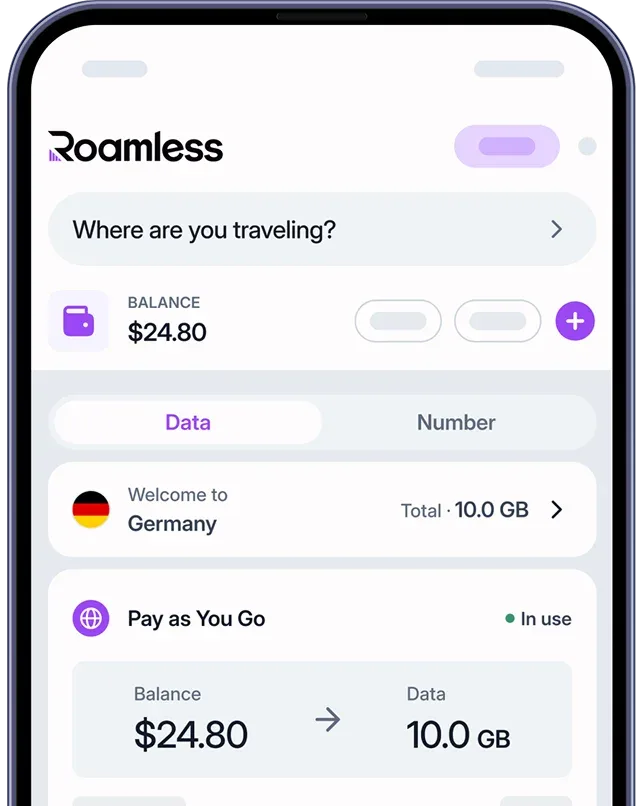
Managing hotspot data efficiently is important for travelers who need reliable internet access across multiple devices. A Global eSIM like Roamless makes it easy to stay connected without switching physical SIM cards or paying high roaming charges.
Flexible Data Plans: Roamless offers pay-as-you-go and fixed data options suited for both short trips and longer stays, allowing you to manage your spending while using your Personal Hotspot abroad.
Instant Activation and Management: You can purchase and activate your eSIM immediately through the Roamless app, giving you full control over your data anytime and anywhere.
Hotspot and Tethering Support: Roamless fully supports Personal Hotspot and tethering usage subject to network conditions and plan balance, letting you connect multiple devices when needed.
Wide Coverage: With support in over 200 destinations, Roamless ensures you can stay connected and use your Personal Hotspot almost anywhere you travel.
In addition, you can open the Roamless app and enter a valid promo code at checkout. To get the latest offers and extra data on your first purchase, visit our eSIM promo code page.
Personal Hotspot allows mobile data to be shared with other devices when Wi-Fi is unavailable. Knowing how to enable, manage, and monitor Personal Hotspot usage helps maintain a stable connection while controlling data and battery consumption. With proper configuration, iPhone provides a practical way to stay connected both at home and while traveling.
For more information, you can also check out our posts on How Much Data Does Hotspot Use? Tethering vs Hotspot and Does Hotspot Use More Data?.
Frequently Asked Questions
How to Manage Data Usage When Using Personal Hotspot on iPhone?
Open Settings and tap Cellular to see your current data usage. Turn off Personal Hotspot when it is not in use and limit the number of connected devices to reduce data consumption.
How to Check How Much Data Personal Hotspot Uses on iPhone?
Open Settings, tap Cellular, and scroll down to find Personal Hotspot data usage. You can reset your statistics at the bottom of the Cellular screen to track usage for a specific period.
How to Share Personal Hotspot with Family Members?
Turn on Personal Hotspot in Settings and share your Wi-Fi password with your family members. They can connect to your iPhone by selecting it from the Wi-Fi list on their device and entering the password.
How to Change Personal Hotspot Password on iPhone?
Open Settings and tap Cellular, then tap Personal Hotspot. Tap Wi-Fi Password, delete the current password, and enter a new one. Tap Done to save.
How to Change Hotspot Name on iPhone?
The hotspot name on your iPhone is the same as your device name. To change it, open Settings, tap General, tap About, and tap Name. Enter a new name and tap Done.
Where Is Personal Hotspot on iPhone?
Personal Hotspot is located in the Settings app. You can find it by opening Settings and tapping Personal Hotspot. It is also accessible under Settings, Cellular, and then Personal Hotspot.
Sources:
[1] Apple. (2024). "Share your internet connection from iPhone. Apple Support: iPhone User Guide". Apple Inc. https://support.apple.com/en-lamr/guide/iphone/iph45447ca6/ios
[2] Apple Support. "Use Personal Hotspot on your iPhone or iPad." Apple Inc. https://support.apple.com/en-us/111785